4 ways our research team is using AI

How can AI help UX researchers in their daily work? Beyond the AI features already built into research platforms, UX researchers can use AI to automate repetitive tasks, organize knowledge, create research materials, and speed up analysis and documentation.
In this article, we share four practical examples of how our UX research team is using AI: building charts from survey data, mapping product flows, creating a research knowledge base, and building prototypes for usability testing.
There are already plenty of articles explaining how AI can support different stages of the UX research process, from brainstorming and planning to analysis. Instead of covering those general use cases, we wanted to look at something more specific: what UX researchers can actually build with AI to save time and effort in their day-to-day work.
I interviewed our team of 8 UX researchers to find out which AI tools and solutions they have been using recently. Here are four of the most interesting use cases.
A chart builder
One of our team members is currently working with a client where there is a large number of users in their target audience and many of her research projects involve creating and running surveys.
Presenting these survey results to stakeholders usually means creating visuals and, most of the time, charts. She was spending a lot of time generating and formatting these charts to match brand requirements so she was looking for a way to make this process faster.
She was already using Gemini in her daily work so it came naturally to turn to it for help. She was starting with a prompt in the chat stating that she needed a chart builder and within minutes a Gemini Gem skill was created for her.
An AI skill is essentially a tool built to handle a specific task. In this case, that task is building charts.
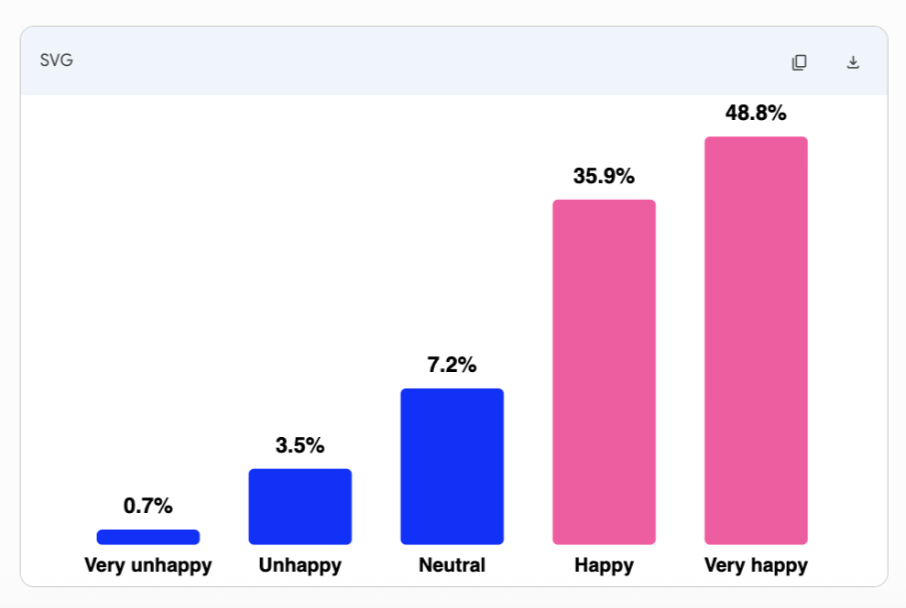
With this chart builder she is able to upload the raw data of survey results. The AI provides suggestions like which type of chart should be used to present the results and creates charts accordingly.
Different design systems can be implemented in it so it generates charts with specific brand colors, fonts, and other visual requirements. She can of course customize that later on as well.
To prevent hallucination, she can ask the AI to refer back and show her the first few rows of data that it used to create a specific chart.
The only thing the human needs to pay specific attention to is to properly sanitize the data before feeding it.
A product flow mapper
The following AI solution was created based on a common need of our research team.
We mapped out our typical UX research workflows and looked for those repetitive tasks that take a lot of time and effort and can be automated.
After performing UX audits, expert reviews and usability tests, when presenting the results to stakeholders, we need screenshots of the tested products to show where exactly a specific insight is coming from.
We connect our feedback and suggestions with the part of the product where for example a problem occurred. We found that creating these screenshots, especially with complex user flows took a lot of time.
That’s when one of our team members turned to Cursor. She prompted it to create an agent that can map out a user flow in a digital product.
She didn’t have to write any code, and the first version of the agent was ready in 30 minutes.
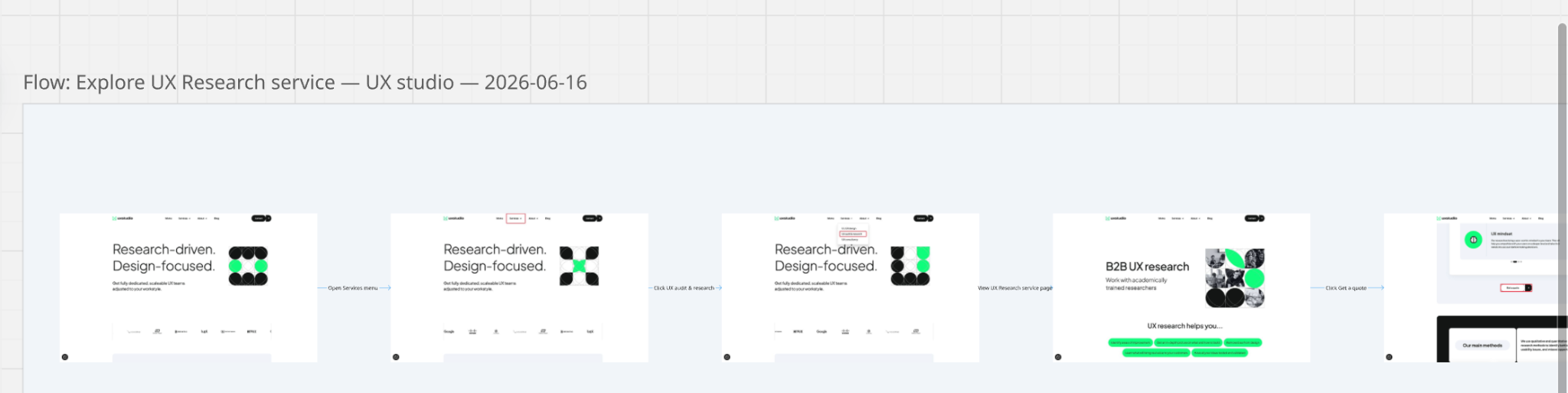
Now the whole team can use it any time we need screenshots for a research project. We give the tool the link to a website and select the user flow we want to map.
It then creates a Miro whiteboard with the screens of the product, and we can customize how we want to highlight specific parts of the screens.
A knowledge base
Our research team is very dedicated to continuous learning and improvement.
One of our members is especially committed to this. He reads lots of articles and books and listens to podcasts in his free time. The more he read and learned, the more he felt the need to keep track of what he was learning and, just as importantly, connect the new information to what he already knew.
That’s when he built his “second brain”.
The first pain point he had was writing well-structured notes on the new information and then connecting this information to the knowledge he already had.
He turned to AI because he knew AI is very good at scanning pages quickly and connecting things from different sources. It can also help identify when two pieces of information contradict each other, which is more difficult to spot manually.
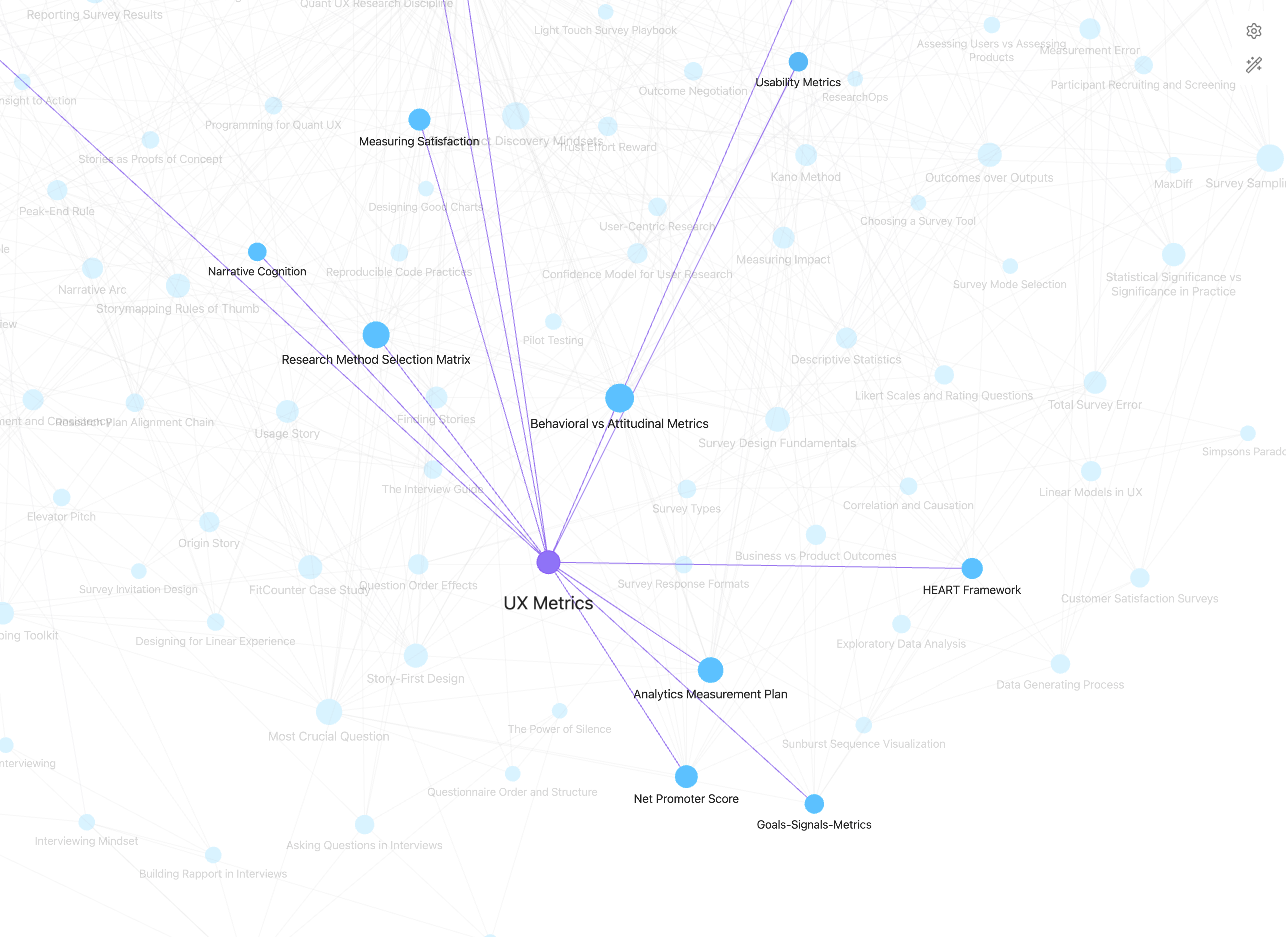
He already had notes in Obsidian that he connected with Claude and created an LLM wiki.
He could feed articles, podcast transcripts, or even an entire book (broken down into smaller pieces) into the model, and it created notes for him and made connections with his existing notes.
Though he double-checked everything in his notes, he still saved a lot of time and effort with the AI keeping everything consistent.
Now, with this knowledge base constantly expanding, he can turn to Claude when starting a new research task and ask to help choose what is the best method to use there based on the things he already knows.
A fully working prototype
As part of our recruitment process, we send applicants a trial task at one point. We ask the applicants to showcase their skills by doing a usability test on a prototype.
We wanted to freshen up that challenge, creating a new one for the future.
I got the task to work on that.
I started by creating a brief,thinking about research questions, and ideating on an application that could be user-tested.
Then there was one thing left to do: to create the prototype.
At that point we didn’t have design capacity within our team to build it, so I turned to Claude Design to do it myself.
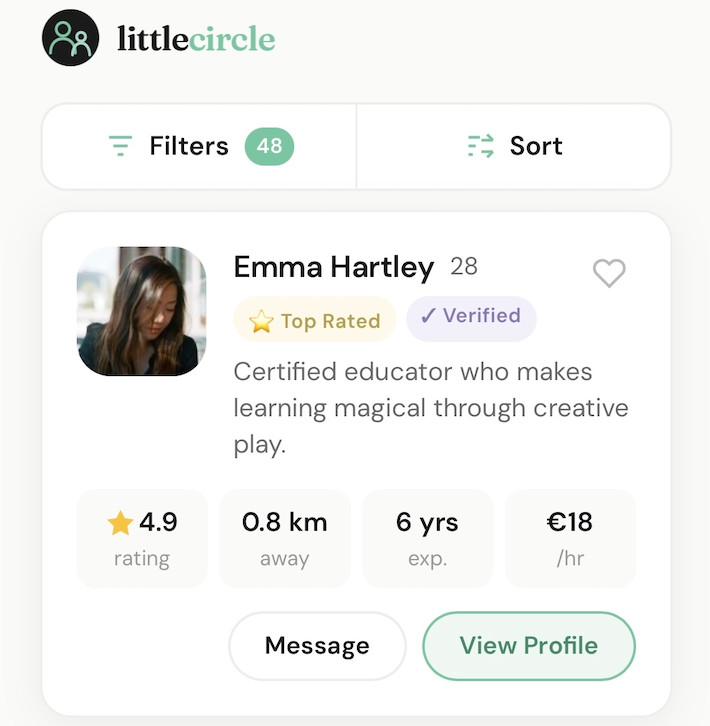
I created a ‘master prompt’, describing that I needed a prototype of a mobile application, my target audience, what style and tone of voice I’m aiming for, some color suggestions, and what main pages, sections, and functions I wish to have.
I started everything from scratch, and after the AI did a few minutes of thinking, the first output was actually quite good.
After some polishing (removing and changing a few things and adding a new feature) it was ready in a couple of hours.
Final thoughts
AI is here to stay, and based on the examples above UX studio’s research team is always looking for tools and AI skills that can help us speed up repetitive and time-consuming tasks.
The goal isn't to replace the researcher. It’s to spend less time on tasks that AI can handle and more time on research activities where human judgment and involvement are still essential.
Reach out to us if you need help figuring out which research-related tasks you could hand over to AI as a smart assistant, and where you should definitely keep a human in the loop.